
“Spring Clean” Your PC
Just like your home, your computer needs a seasonal deep cleaning. Over time, dust builds up, software gets bloated, storage fills, and performance slows down. A proper “spring cleaning” can make your PC faster, safer, and more reliable — often without spending a dime.
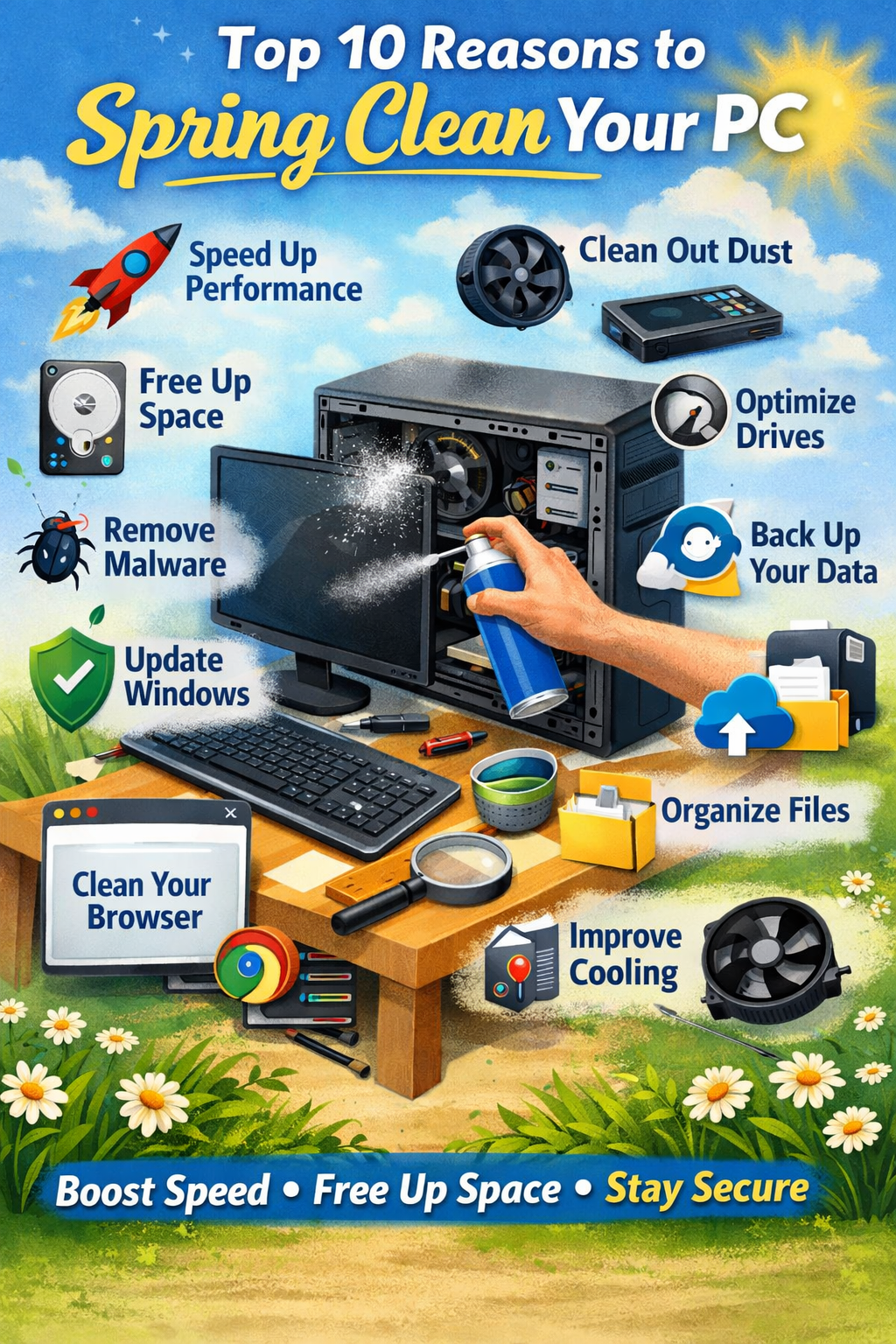
Here are the top 10 reasons to spring clean your PC, along with step-by-step instructions for each one.
1. Improve Speed and Performance
Why it matters:
Unused programs, background apps, and temporary files can drag your system down.
How to do it:
- Uninstall unused programs
- Press Windows + R, type
appwiz.cpl, press Enter. - Sort by “Installed On.”
- Remove programs you no longer use.
- Press Windows + R, type
- Disable startup programs
- Press Ctrl + Shift + Esc to open Task Manager.
- Click the Startup tab.
- Disable non-essential programs.
- Run Disk Cleanup
- Open File Explorer → Right-click C: drive → Properties.
- Click Disk Cleanup.
- Select Temporary files, Recycle Bin, etc.
You’ll often notice an immediate speed boost.
2. Free Up Storage Space
Why it matters:
A full hard drive slows your PC and can cause updates to fail.
How to do it:
- Open Settings → System → Storage.
- Review what’s using space (Apps, Documents, Pictures).
- Delete large unused files.
- Move photos/videos to:
- External hard drive
- NAS
- Cloud storage
- Empty the Recycle Bin.
Tip: Aim to keep at least 20% of your drive free.
3. Remove Malware and Threats
Why it matters:
Malware can steal data, slow performance, and damage your system.
How to do it:
- Open Windows Security.
- Go to Virus & Threat Protection.
- Click Scan Options → Full Scan.
- Remove any detected threats.
- Optional: Run a second-opinion scanner like Malwarebytes.
If you notice pop-ups, browser redirects, or strange performance, don’t ignore it.
4. Update Windows and Drivers
Why it matters:
Updates fix security vulnerabilities and improve performance.
How to do it:
- Go to Settings → Windows Update.
- Click Check for Updates.
- Install all updates and reboot.
- Update drivers:
- Right-click Start → Device Manager.
- Look for warning icons.
- Right-click device → Update driver.
Don’t skip BIOS or firmware updates if recommended by the manufacturer.
5. Clean Out Dust (Physically)
Why it matters:
Dust causes overheating, which shortens component lifespan.
How to do it safely:
- Shut down and unplug your PC.
- Hold the power button for 10 seconds (discharge).
- Open the case.
- Use compressed air (never a vacuum).
- Clean:
- Fans
- CPU heatsink
- GPU fans
- Power supply vents
- Don’t let fans spin freely while spraying (hold blades gently).
For laptops: blow air through vents — do not disassemble unless experienced.
6. Optimize Your Hard Drive
Why it matters:
Fragmented drives slow down file access (HDD only).
How to do it:
- Type Defragment in Start.
- Open Defragment and Optimize Drives.
- Select your HDD.
- Click Optimize.
Important:
- Do NOT defrag an SSD.
- Windows automatically optimizes SSDs properly.
7. Back Up Your Data
Why it matters:
Hardware fails. Ransomware happens. Backups save businesses.
How to do it:
- Plug in an external drive.
- Go to Settings → Update & Security → Backup.
- Turn on File History.
- Or create a full system image:
- Control Panel → Backup and Restore → Create a system image.
Best practice:
Follow the 3-2-1 Rule
- 3 copies of data
- 2 different storage types
- 1 offsite copy
8. Organize Files and Folders
Why it matters:
Cluttered desktops and chaotic folders reduce productivity.
How to do it:
- Create main folders like:
- Documents
- Clients
- Projects
- Photos
- Move files from Desktop into structured folders.
- Rename files clearly:
- Instead of:
doc1.pdf - Use:
2026_Tax_Documents.pdf
- Instead of:
A clean digital workspace increases efficiency immediately.
9. Clean Your Browser
Why it matters:
Extensions and cached files slow browsing and create security risks.
How to do it:
- Open your browser.
- Go to Extensions and remove ones you don’t use.
- Clear cache:
- Press Ctrl + Shift + Delete.
- Select Cached Images and Files.
- Check homepage and default search engine settings.
If browsing still feels slow, consider resetting the browser.
10. Improve Cooling and Airflow
Why it matters:
High temperatures throttle performance and shorten lifespan.
How to do it:
- Ensure the PC isn’t pushed against a wall.
- Elevate laptops off soft surfaces.
- Consider adding:
- Extra case fan
- Laptop cooling pad
- Monitor temperatures with tools like HWMonitor.
Ideal temps:
- CPU under load: under 85°C
- GPU under load: under 85°C
If temps are high, reapply thermal paste (advanced users only).
Bonus: When to Upgrade Instead of Clean
Sometimes cleaning isn’t enough. Consider upgrading if:
- You still have a mechanical hard drive (upgrade to SSD).
- You have less than 8GB RAM.
- Your PC is 7+ years old.
An SSD upgrade alone can make a computer feel brand new.
Final Thoughts
Spring cleaning your PC once or twice a year can:
- Extend hardware life
- Improve speed
- Increase security
- Prevent data loss
- Reduce frustration
Think of it as preventative maintenance — far cheaper than emergency repair or data recovery.